 Prompter Dock
 Slot Copy
Slot Copy Documentation
The complete technical guide to using the world's fastest multi-slot clipboard manager. Learn how to configure, optimize, and dominate your daily workflow.
1. Introduction & Core Philosophy
Welcome to the official documentation for Slot Copy, the highly-optimized multi-slot clipboard manager engineered strictly for velocity and keyboard-driven efficiency. This manual covers every aspect of the application—from basic usage to advanced architectural paradigms.

The Philosophy
Traditional clipboard managers intercept everything you copy, creating a massive, unorganized linear log. While useful for casual retrieval, this approach scales poorly for developers, marketers, and researchers who need to repetitively copy and paste multiple distinct pieces of information across different windows simultaneously.
Slot Copy fundamentally changes this paradigm. Instead of a single linear history, it provides isolated, discrete slots. You assign a specific shortcut (e.g., ⌘ + 1, ⌘ + 2, etc.) to a specific slot. When you copy to Slot 1, that data is preserved there until overwritten. When you paste from Slot 1, that precise data is injected. This allows you to hold up to 10 distinct, concurrent clipboards entirely in your muscle memory.
By strictly adhering to a Zero-Latency Local Storage architecture, Slot Copy ensures that every byte of clipboard data never leaves your machine, while remaining instantly accessible.
2. Installation & Setup
Installing Slot Copy is a straightforward process optimized for macOS environments.
System Requirements
- OS: macOS 11.0 (Big Sur) or later.
- Architecture: Apple Silicon (M1/M2/M3) natively supported and recommended, Intel x86_64 fully supported.
- Storage: Minimal (app binary is lightweight), though clipboard history logs will consume local disk space proportionally to your usage.
Permissions
Due to the nature of capturing keyboard events globally to intercept shortcuts (like ⌘ + C modifiers), Slot Copy requires Accessibility permissions on macOS.
- Open System Settings > Privacy & Security.
- Navigate to Accessibility.
- Ensure the toggle next to Slot Copy is enabled.
3. The Dashboard (Core Interface)
The Dashboard is the command center for Slot Copy. It provides a birds-eye view of all currently active slots, storage consumption, and system health.
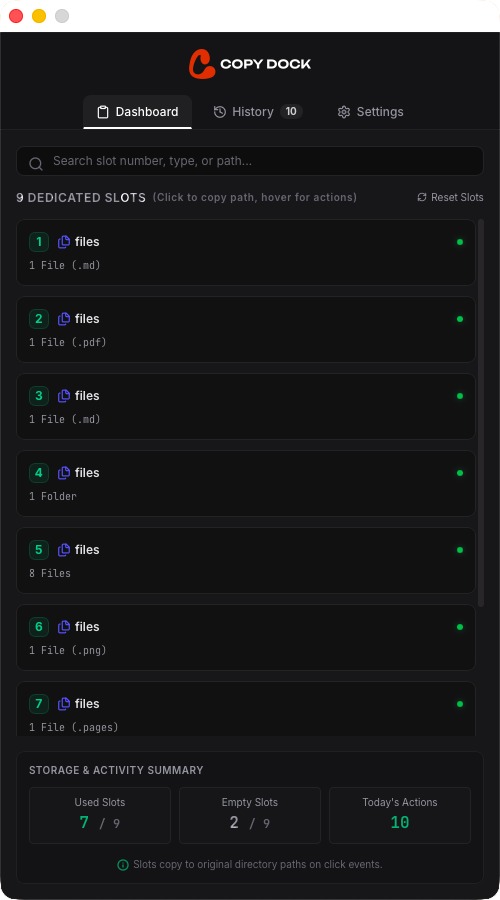
Clipboard Slots
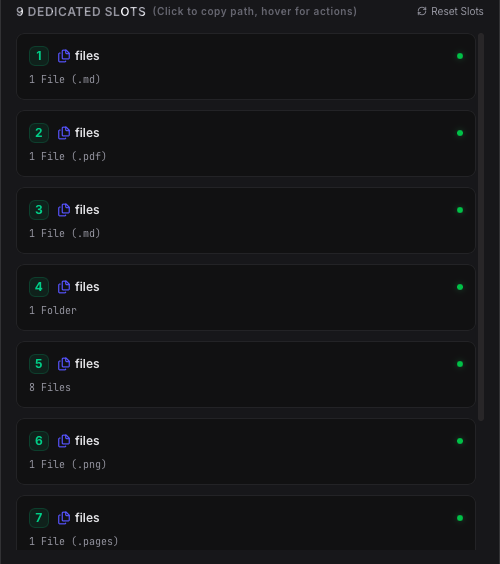
The primary view displays your distinct clipboard slots. Each slot operates completely independently. You can visually confirm what data is currently held in memory for each specific shortcut.
Storage & Activity Summary
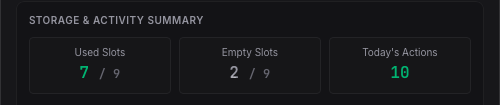
Located in the header, the Storage Summary provides real-time telemetry on the local disk space consumed by your history logs. This helps you monitor when it might be time to purge older records.
Navigation & Interface Elements

The sidebar tabs allow rapid switching between the Dashboard, History logs, and Settings panes.

The global searchbar lets you instantly filter slots based on text content, bypassing manual visual scans.

In emergencies or for privacy reasons, the Reset Slots button allows you to instantly zero-out all currently active slots in memory with a single click.
4. The History Module
While slots are meant for active, concurrent pasting, the History Module serves as the immutable ledger of every action you have taken with Slot Copy.
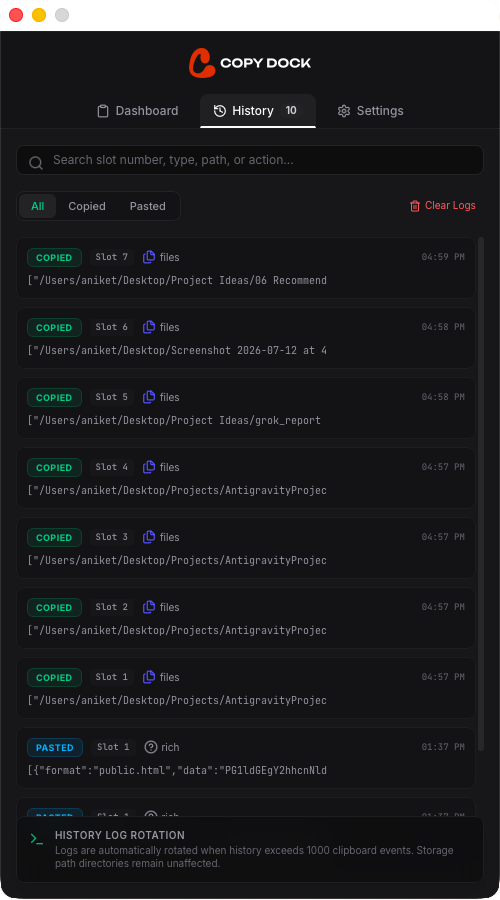
Copy/Paste History Strips
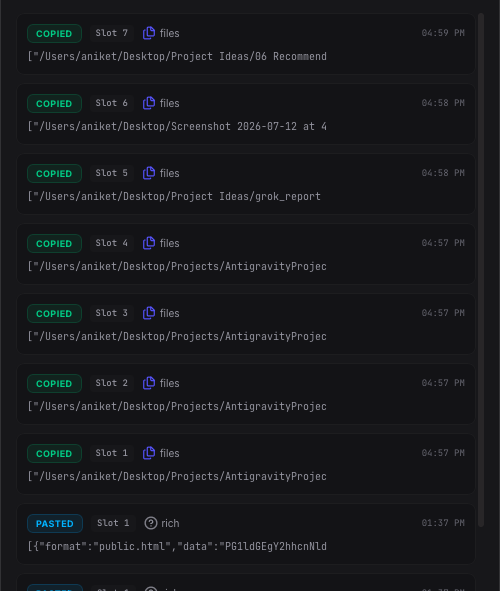
Every time data enters or exits a slot, a log is recorded. These are presented as chronological "strips", displaying exactly what was copied, the target slot used, the source application, and the exact timestamp.
Filtering

Use the Quick Filters to instantly toggle between viewing purely 'Copy' actions, purely 'Paste' actions, or All actions.
Deep Searching

The history search bar leverages an optimized local SQLite index to instantly search through thousands of past logs for specific strings.
Data Management
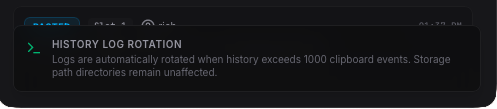
You can set a Log Rotation Limit, ensuring the database automatically trims the oldest entries once it reaches a certain count, preventing unbounded disk usage.

A manual Clear Logs action is available to aggressively truncate the entire database immediately.
5. The Mini App
The macOS Menu Bar hosts the Slot Copy Mini App, granting instantaneous access without needing to break your flow and switch context to the main window.
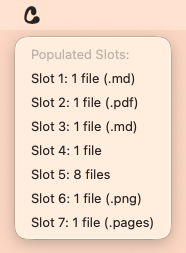
Left Click (The Peek UI)
Left-clicking the menu icon drops down a quick summary showing the live contents of your slots, allowing you to instantly recall what is stored where.
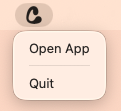
Right Click (Action Menu)
Right-clicking exposes structural application actions like opening the main dashboard, forcing a quit, or rapidly clearing all slots.
6. Settings & Configuration
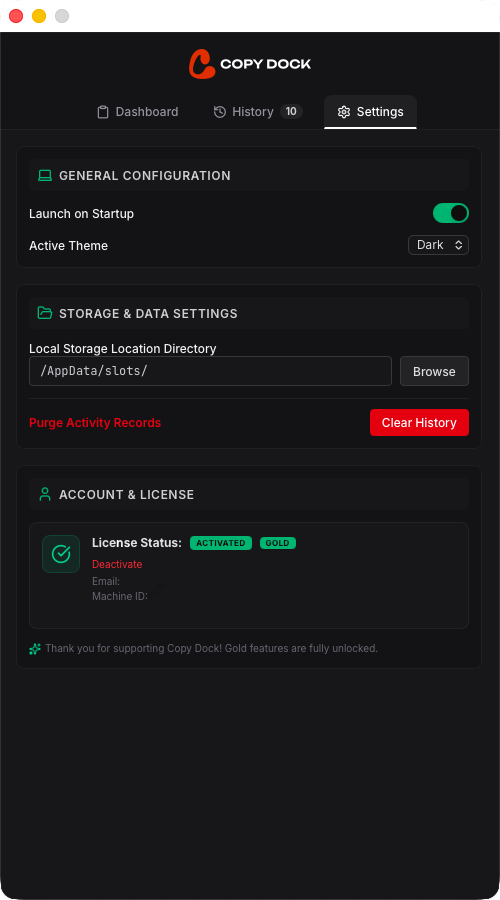
The Settings pane is where you align Slot Copy precisely to your operational preferences. From UI themes to raw data path overrides, total control is exposed.
General Configuration

The General section handles primary OS-level integrations.

Theme Selection: Toggle the UI between Dark mode, Light mode, or strictly follow System preferences.

Launch on Startup: Guarantee that Slot Copy's daemon is booted the second you log into macOS.
Storage & Data Engine
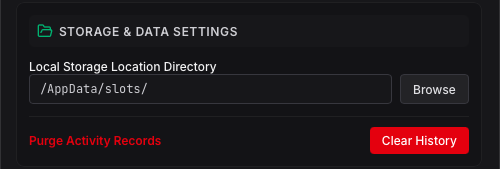
By default, Slot Copy sandboxes its SQLite database in the standard macOS Application Support directory. However, power users can manipulate this.
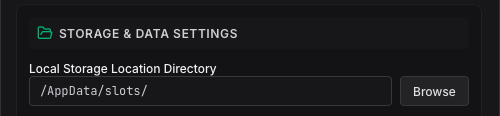
You can define an explicit overriding Local Storage Location Path. This is exceptionally powerful if you wish to route your history database onto an encrypted volume, a ramdisk (for extreme speed), or a cloud-synced folder like iCloud Drive or Dropbox to share clipboard states across multiple Macs.
-button.webp)
Use the Purge Activity Records button to irreversibly destroy the local database file, forcing the engine to generate a fresh, blank ledger.
7. Licensing & Account
Slot Copy utilizes a standard activation key model. The application operates in a fully-featured Trial Version upon initial install.
The Activation Form
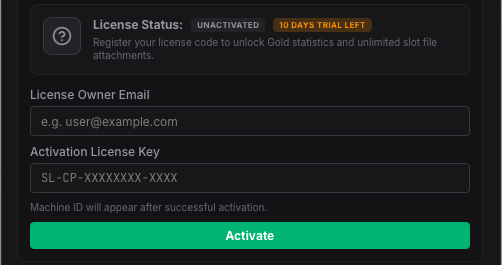
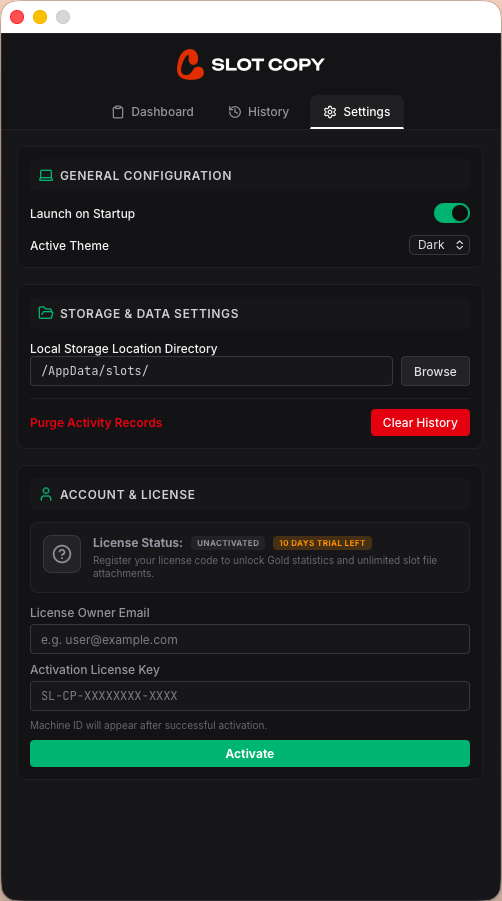
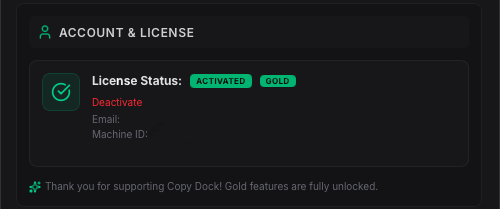
Enter the License Key provided in your email receipt. The application pings the licensing server securely over HTTPS to cryptographically verify the token.
Activation Status
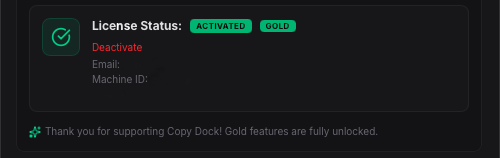
Once validated, the UI will reflect the active status, permanently disabling all trial limitations and telemetry overlays.
8. Advanced Workflows
The true power of Slot Copy emerges when you commit its functionality to muscle memory. By decoupling from the standard clipboard, you eliminate the cognitive load of constantly toggling windows.
The Multi-Variable Form Fill
When moving data from a spreadsheet (e.g., Name, Email, Phone, Address) into an administration panel:
- In Excel, highlight Name. Press
Option + 1. - Highlight Email. Press
Option + 2. - Highlight Phone. Press
Option + 3. - Switch to the Admin Panel window.
- In the Name field, press
Cmd + 1. - In the Email field, press
Cmd + 2. - In the Phone field, press
Cmd + 3.
By grouping variables into slots, you reduce application switching overhead by roughly 75%. Over the course of a standard workday, this compounds into significant time savings and a noticeable reduction in context-switching fatigue.
Code Refactoring
Developers can use slots as temporary variables during complex refactors. Rather than opening scratchpad files, assign a block of legacy code to Slot 9, and the newly drafted logic to Slot 8. This keeps your primary system clipboard (Cmd+C) free for standard operations, while maintaining your architectural blocks in persistent memory.
Ready to optimize?
Slot Copy operates purely on velocity. Configure your shortcuts, memorize your layout, and never lose your clipboard again.